A sluggish, dropping, or completely dead internet connection is one of the most frustrating things to deal with at home. The good news is that resetting your Quantum Fiber modem resolves a large share of these problems — often in just a few minutes. The key is knowing which kind of reset you actually need, because doing the wrong one can wipe your settings unnecessarily.
This step-by-step guide explains the difference between a simple restart and a full factory reset, walks you through each safely, and shows you how to reconnect and avoid future issues. By the end, you will be able to confidently reset your equipment without guesswork.
Table of Contents
- Restart vs factory reset: know the difference
- When to reset your modem
- How to restart (power cycle) your modem
- How to factory reset your modem
- Reconnecting after a reset
- What to do if resetting does not help
- Tips to avoid frequent resets
- Frequently asked questions
- Final thoughts
Restart vs Factory Reset: Know the Difference
The single most important thing to understand before you touch your equipment is that "restart" and "reset" are not the same thing, even though people use the words interchangeably. Choosing the right one saves you time and prevents unnecessary hassle.
A restart, also called a power cycle, simply turns the modem off and on again. It clears temporary glitches, refreshes the connection to the network, and keeps all your settings — your Wi-Fi name, password, and any custom configuration — completely intact. This is the gentle, everyday fix and should always be your first attempt.
A factory reset, by contrast, erases everything and returns the modem to its original out-of-the-box state. Your custom Wi-Fi name and password, port settings, and any other personalization are wiped. This is a heavy-handed fix reserved for stubborn problems that a restart cannot solve. Because it undoes your settings, you should only use it when simpler steps fail.
When to Reset Your Modem
Knowing when to reset helps you avoid both under-reacting and overreacting. A simple restart is the right move for the most common annoyances: the internet is slow, web pages will not load, your connection keeps dropping, or devices suddenly cannot get online even though nothing has changed. These everyday hiccups usually clear with a power cycle.
A factory reset is appropriate in more serious situations: you have forgotten your admin or Wi-Fi password and cannot access settings, the modem is behaving erratically after a failed configuration change, you are preparing to return or repurpose the equipment, or repeated restarts have failed to fix a persistent problem. In short, restart for routine issues and reserve the factory reset for when you genuinely need a clean slate.
Before doing either, it is worth confirming the problem is actually on your end. If there is a known area outage, no reset will help — you simply have to wait for service to be restored.
How to Restart (Power Cycle) Your Modem
Power cycling is simple, safe, and effective. Follow these steps and give the equipment time to fully reconnect rather than rushing it.
First, unplug the power cable from the back of your Quantum Fiber modem, or switch off the power at the outlet. If you have a separate router, unplug that as well. Second, wait at least 30 seconds. This pause lets the hardware fully power down and clears the temporary memory that may be holding a glitch.
Third, plug the modem back in first and wait for it to fully boot up. This can take a few minutes, and you should watch the status lights settle into their normal steady pattern before moving on. Fourth, if you have a separate router, plug it back in and let it boot as well. Finally, test your connection on a device. In most cases, your internet will be working normally again once all the lights are stable.
If nothing happens after several minutes, double-check that all cables — power and fiber — are firmly seated, since a loose connection can look like a bigger problem than it is.
How to Factory Reset Your Modem
If a restart has not solved the issue and you are sure you need a clean slate, a factory reset is the next step. Be aware that this erases all your custom settings, so you will need to set up your network again afterward.
Locate the reset button on your modem. It is usually a small, recessed pinhole on the back or bottom of the device, designed so it cannot be pressed by accident. You will need a paperclip or a similarly thin, pointed object to reach it.
With the modem powered on, press and hold the reset button for roughly 10 to 15 seconds. Keep holding until you see the lights blink or change pattern, which indicates the reset is taking effect. Then release the button and allow the modem several minutes to fully restart and return to its default state. Do not unplug it during this process, as interrupting a factory reset can cause problems.
Once it has rebooted, the modem is back to its original configuration, and you will connect using the default network name and password — typically printed on a label on the device itself.
Reconnecting After a Reset
After a simple restart, you usually do not need to do anything — your devices reconnect automatically because your Wi-Fi name and password are unchanged. After a factory reset, however, your network has returned to its defaults, so there are a few steps to get back to normal.
Look for the default Wi-Fi network name and password on the label attached to your modem, and connect your device using those credentials. Then, for security and convenience, log into the modem settings through the Quantum Fiber app or the admin web page to create a personalized Wi-Fi name and a strong password. Reapply any custom settings you had before, such as guest networks or specific configurations.
Take a moment to reconnect your other devices — phones, laptops, smart TVs, and smart-home gadgets — to the network. If you changed the Wi-Fi name, each device will need to be pointed to the new network once.
What to Do If Resetting Does Not Help
If neither a restart nor a factory reset restores your connection, the problem likely lies beyond your modem. Start by checking for a service outage in your area. If Quantum service is genuinely down, the issue is on the provider side and no reset will fix it. Our guide on whether Quantum is down walks through how to confirm an outage versus a local problem.
Next, inspect the physical connections one more time, paying special attention to the fiber cable, which can be sensitive to bends or loose seating. Try a wired connection directly into the modem to determine whether the issue is your internet feed or just your Wi-Fi. Also confirm your account is active and paid, since a billing interruption can cut service in a way that mimics a technical fault.
If everything checks out and you still have no connection, it may be time to contact support, as the modem hardware itself could be failing or the line may need a technician. Persistent problems after a clean reset are a signal that the cause is not something you can fix from home.
Tips to Avoid Frequent Resets
If you find yourself resetting often, a few habits can reduce how frequently problems occur. Place your modem and router in a central, well-ventilated spot, away from heat sources and thick walls, so they run cool and broadcast Wi-Fi effectively. Keep firmware up to date, since updates fix bugs that cause instability.
Protect your equipment from power fluctuations with a small uninterruptible power supply or surge protector, because sudden power flickers can corrupt settings and force resets. Periodically restarting your modem on purpose — say, once a month — can also keep it running smoothly by clearing accumulated glitches before they become disruptive.
For anyone running an online business or website from home, connection stability is more than a convenience. Investing in dependable website maintenance and support and robust back-end web development ensures your own services stay reliable even when home networks have an occasional bad day.
Understanding Your Modem Status Lights
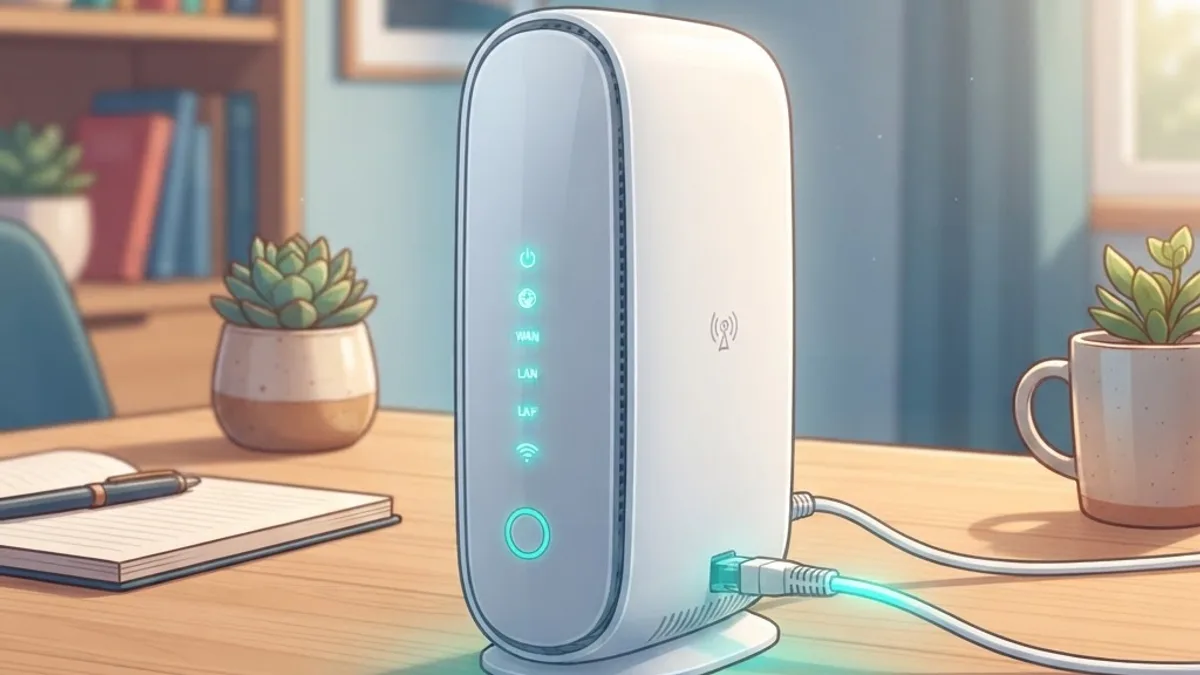
Your modem’s indicator lights are the fastest way to understand what is happening before, during, and after a reset. While exact layouts vary, most Quantum Fiber equipment uses a consistent logic: a steady power light confirms the device has electricity, while a separate light indicates whether the fiber signal is being received. A stable internet or connection light means data is flowing normally.
When you power cycle, watch these lights settle from blinking into a steady pattern; that transition tells you the modem has finished booting and reconnected. If a particular light stays off or keeps blinking long after a restart, it points to where the problem lies. For example, a missing signal light suggests the issue is with the incoming fiber connection rather than your Wi-Fi. Learning to read these lights turns guesswork into diagnosis and helps you decide whether a simple restart is enough or a deeper fix is needed.
Restarting Through the App vs the Physical Device
You often have two ways to restart your equipment: physically, by unplugging it, or remotely, through the Quantum Fiber app. Both achieve a similar result, but each has its place. The physical power cycle is the most thorough, since it fully cuts power and clears the hardware, and it works even when the modem is unresponsive to software commands.
Restarting through the app is more convenient, especially if your equipment is tucked away or hard to reach. It lets you reboot the modem with a few taps and can be handy when you are troubleshooting Wi-Fi from another room. As a rule of thumb, try the app first for convenience, and fall back to a physical power cycle if the app cannot reach the device or the problem persists. Reserve the factory reset for last, since it wipes your settings and requires reconfiguration afterward.
Frequently Asked Questions
What is the difference between restarting and resetting? Restarting (power cycling) turns the modem off and on while keeping your settings. A factory reset erases all settings and returns the modem to its original state.
Will resetting my modem delete my Wi-Fi password? A simple restart will not. A factory reset will erase your custom Wi-Fi name and password, so you will need to set them up again.
How long should I wait when power cycling? Unplug the modem for at least 30 seconds before plugging it back in, then allow a few minutes for it to fully boot.
Where is the reset button on a Quantum Fiber modem? It is usually a small recessed pinhole on the back or bottom of the device, which you press with a paperclip.
How long does a factory reset take? After holding the button for about 10 to 15 seconds, allow the modem several minutes to fully restart before reconnecting.
What if resetting does not fix my internet? Check for an area outage, inspect your cables, test a wired connection, confirm your account is active, and contact support if the problem persists.
How often should I reset my modem? You should not need to often. An occasional monthly restart can help, but frequent resets suggest a deeper issue worth investigating.
Final Thoughts
Resetting a Quantum Fiber modem is one of the most reliable first steps for fixing home internet trouble. The golden rule is to start gentle: power cycle first, and reserve the factory reset for stubborn problems or when you need a completely clean slate. Doing so saves you the hassle of reconfiguring your network unless it is truly necessary.
With the steps in this guide, you can confidently restart or reset your equipment, reconnect your devices, and know exactly when the problem is bigger than something a reset can solve. A little know-how turns a frustrating outage into a quick, five-minute fix.